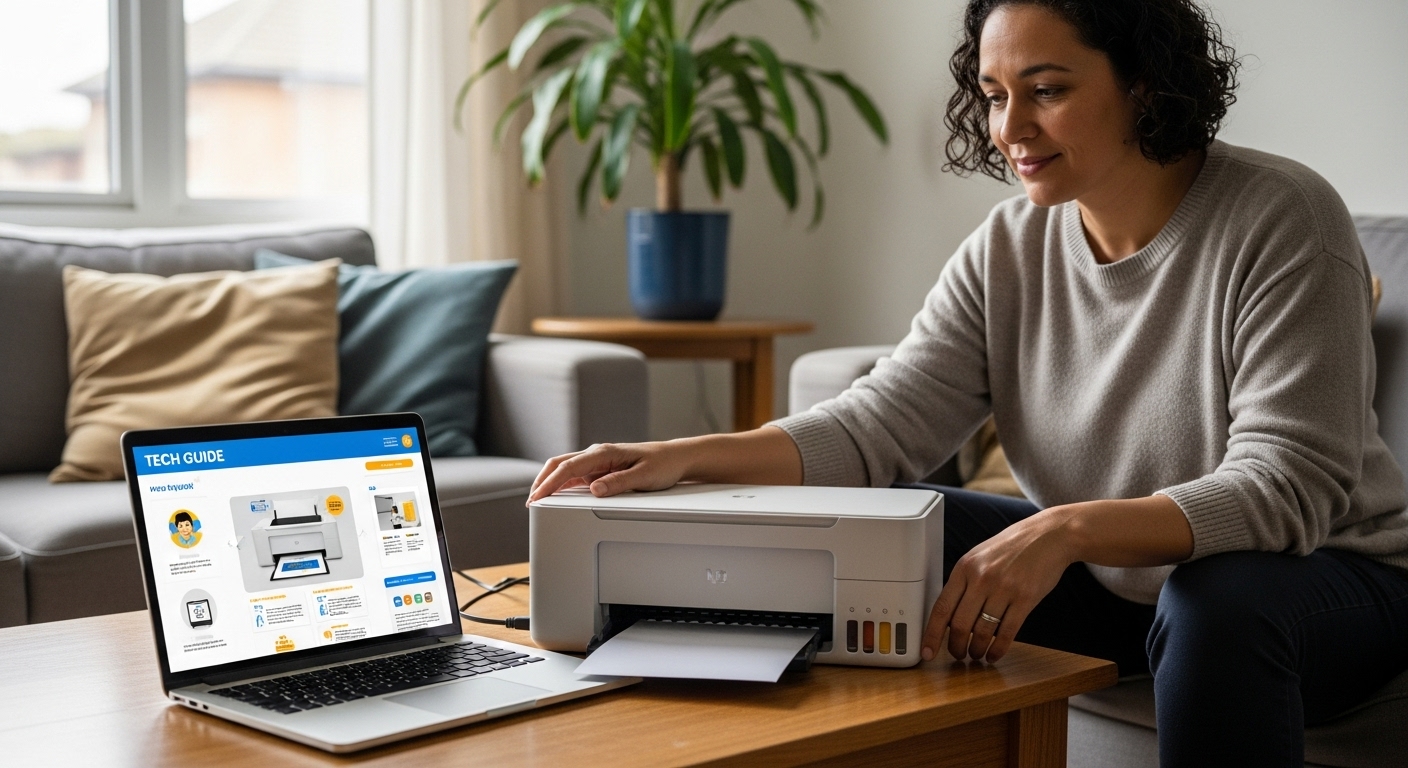
Welcome to Setwise Digital. If you have recently purchased a new printer, you might feel a mix of excitement and hesitation. Technology moves fast, and modern printers—like the HP LaserJet Pro 4001 series or the HP Smart Tank 500 series—are more like small computers than the simple machines we used twenty years ago.
This guide is specifically written for our senior community in the USA. We believe that technology should serve you, not the other way around. Over the next 2,000+ words, we will walk you through everything from the first piece of tape you pull off the box to the advanced settings that ensure your family photos look professional.
Our mission today is Hardware Freedom: giving you the knowledge to keep your printer running without being forced into expensive subscriptions or stuck behind “Driver Unavailable” errors.
Chapter 1: Unboxing and the “First Hour” Ritual
The way you start your journey with your printer determines how many headaches you will have later. Whether you have the high-speed LaserJet Pro 4001n, 4001dn, or 4001dw, or the ink-efficient Smart Tank 500, 515, or 5101, the physical setup is your first hurdle.
The Search for Orange Tape
Manufacturers use high-strength adhesive tape to ensure the delicate moving parts inside your printer don’t break during shipping.
- Exterior Tape: Remove all blue and orange tape from the outside.
- The Toner/Ink Bay: Open the front or top door. In the LaserJet Pro 4001, you will see the toner cartridge. Often, there is a plastic “pull ring” or a orange shield on the cartridge itself. If you don’t remove this, your printer will produce blank white pages.
- The Paper Tray: Slide the paper tray out completely. Check for cardboard spacers hidden inside.
Loading Your Consumables
For the LaserJet Pro 4001 Series: These printers use “Toner,” which is a fine powder. It doesn’t dry out like liquid ink, making it perfect for seniors who might go weeks without printing.
- Setwise Tip: Give the toner cartridge a gentle “rock” side-to-side before inserting it. This levels the powder inside for better print quality.
For the Smart Tank 500 Series: These are “Tank” printers. Instead of small cartridges, you pour ink from a bottle into a large reservoir on the side of the machine.
- The Spill-Proof Secret: HP designed these bottles with a special “keyed” nozzle. You flip the bottle upside down and press it onto the tank. It will not leak until it is locked into the printer. Wait for the gurgling sound to stop before pulling the bottle away.
Chapter 2: The HP+ Crossroad – To Join or Not to Join?
This is the most critical part of your setup. During the installation, your computer or phone will show a bright, friendly screen asking you to activate HP+.
What is HP+?
HP+ is a cloud-based service. In exchange for activating it, HP offers:
- An extra year of HP warranty.
- 6 months of “free” ink via the Instant Ink program.
- Advanced features in the HP Smart App.
The “Permanent Lock” Warning
At Setwise Digital, we believe in transparency. If you activate HP+ on your LaserJet 4001 or Smart Tank 500, it is irreversible. Your printer will be required to have an internet connection to work, and it will strictly forbid the use of “Third-Party” or “Generic” ink cartridges.
If you enjoy buying your ink at a discount from Costco, or if you prefer to buy “remanufactured” cartridges from Amazon to save 50% on costs, do not activate HP+.
How to Say “No” Gracefully
The HP software is designed to be persistent. It may say “Get HP Software” or “Complete Activation.” Many of our clients find this misleading.
- The Setwise Hack: Look for the “Cancel” or “Skip” button. It is usually in the bottom corner and may be grey instead of a bright color. You might have to click “Cancel” two or three times. Eventually, the software will ask, “Are you sure you want to skip the benefits of HP+?” Click Yes. Your printer will still work perfectly for basic printing and scanning.
Chapter 3: Connecting to Windows 11 (Bypassing the Glitches)
Windows 11 is a beautiful system, but it is notorious for the “Driver Unavailable” error. You try to print a letter to a friend, and the computer simply says it doesn’t know how to talk to your HP Smart Tank 500.
Why the “HP Smart App” Fails
The official app tries to do too much at once. It tries to manage your ink, your scans, and your cloud account. Sometimes, the connection breaks.
The Setwise Technical “Manual Hack”
If your computer says the driver is missing, follow these steps. This is the most reliable way to connect a LaserJet Pro 4001 or Smart Tank 500:
- Print a Network Configuration Page: On your printer, go to the “Wireless” or “Setup” menu and print the “Network Summary.” Look for the IP Address (it will look like
192.168.1.XX). - Use the 7-Zip Trick: Go to HP’s website and download the “Full Webpack” driver for your model. Instead of double-clicking it to run it, right-click the file and use a program called 7-Zip to “Extract” the files to a folder on your desktop.
- The “Have Disk” Method:
- Open your Windows Settings > Bluetooth & Devices > Printers & Scanners.
- Click Add Device, then wait for the link that says “The printer that I want isn’t listed” to appear. Click it.
- Select “Add a printer using a TCP/IP address.”
- Enter the IP Address you wrote down earlier.
- When Windows asks for the driver, click “Have Disk” and point it to the folder you created on your desktop. Look for a file ending in
.inf.
This “Manual” method is the “Gold Standard” for senior users because it creates a permanent, stable bridge between your computer and your printer that doesn’t rely on the “fickle” HP Smart App.
Chapter 4: Troubleshooting Hardware and Print Quality
Even a perfectly set up printer will eventually have a “bad day.” Here is how to handle the most common physical issues.
1. The “Offline” Ghost
You know the printer is on. You can see the lights. But your computer insists it is “Offline.”
- The Cause: Most modern printers go into a “Deep Sleep” to save electricity. Sometimes they don’t wake up when the computer “knocks” on the door.
- The Fix: Don’t just press the power button. Unplug the power cord from the wall for 60 seconds. This forces the internal computer of your Smart Tank 500 to restart its brain.
2. Horizontal Banding and Graininess
If you print a photo and see white lines (banding) or if the image looks “sandy” (graininess), your printheads are likely clogged.
- For Smart Tank 500 users: Since this printer uses liquid ink, air bubbles can get into the tubes. Use the printer’s maintenance menu to run a “Power Cleaning” or “Printhead Alignment.” * Note: Only do this twice. If it’s still not fixed, the problem might be the paper quality.
3. Understanding “Aeroworms”
This is a term used by professional photographers that we want you to know. If you see very thin, wavy lines on your prints, these are “Aeroworms.”
- The Science: This happens because the air moving inside the printer is pushing the tiny ink drops out of place.
- The Easy Fix: Increase the “Number of Passes.” In your print settings, choose “Best Quality” instead of “Normal.” This tells the printer to move slower, which reduces the wind inside the machine.
4. Static Electricity and Dust
In the USA, especially during winter when the heater is on, your home can get very dry. This creates static electricity.
- The Symptom: Your printer attracts dust like a magnet, and the ink starts to look “blurry” on the edges.
- The Fix: Wipe the paper tray with a slightly damp (not wet!) lint-free cloth. You can even use a tiny bit of isopropyl alcohol on the plastic parts of the tray to “ground” the static.
Chapter 5: Maintenance for Your Specific Model
For the LaserJet Pro 4001 Series
This is a workhorse printer. It is designed to print thousands of pages.
- The Control Panel Freeze: Some early units of the 4001-4004 models had a glitch where the screen would stop responding. This usually happens on firmware version .2148H. If this happens to you, call HP support and ask for an “OOBE Reset.”
- Cleaning: Never use canned air inside a LaserJet. It blows the toner powder everywhere. Use a small, handheld vacuum if you see dust.
For the Smart Tank 500 Series
- The OMAS Sensor: This is the “eye” of your printer. It looks at the paper to make sure it is moving at the right speed. If the paper keeps jamming, take a Q-tip with a tiny drop of water and gently wipe the small glass sensor inside the paper path.
- Curing Temperatures: If you are printing on glossy photo paper and the ink feels “sticky” or “wet” even after a minute, you need to adjust the “Curing” or “Drying Time” in the settings. This gives the ink more time to set before the next page slides on top of it.
Chapter 6: The Setwise Digital “Rule of Thumb” for Seniors
We often see our clients get frustrated because a print isn’t “perfect.” We want to give you the Professional Viewing Standard to save you stress.
The 3-Foot Rule: Professionals don’t look at prints with a magnifying glass.
- If it is a photo for a frame on the wall, look at it from 3 feet (1 meter) away.
- If it looks good from that distance, it is a successful print. Do not waste your expensive ink or your valuable time trying to fix a microscopic dot that no one will ever see!
Chapter 7: Frequently Asked Questions (FAQ)
Q: Can I use third-party ink in my Smart Tank 500? A: Yes, only if you did not activate HP+ during setup. If you opted out, you can use any high-quality bottled ink designed for “Tank” printers.
Q: My LaserJet 4001 says “Cartridge Low” but it still prints. Should I change it? A: No! Toner cartridges can often print hundreds of pages after the “Low” warning appears. Keep printing until the text starts to look faded on one side. When that happens, take the cartridge out, shake it, and put it back in—you’ll likely get another 50 pages!
Q: Is the HP Smart App safe to use? A: It is safe, but it requires you to create an account and share some data with HP. At Setwise Digital, we recommend the “Manual IP” setup mentioned in Chapter 3 if you value your privacy and want a simpler experience.
Q: How do I stop my printer from updating itself? A: Inside the printer’s web settings (type the IP address into your internet browser), look for “Printer Updates.” Change the setting to “Notify me before installing.” This prevents HP from sending an update that might “lock” your printer or change your settings without your permission.
Final Thoughts from Setwise Digital
Setting up a printer is no longer as simple as plugging in a cable, but you are more than capable of mastering it. By choosing to stay “free” from permanent firmware locks and using the manual connection methods we’ve discussed, you are ensuring that your HP LaserJet Pro 4001 or Smart Tank 500 remains a helpful tool rather than a source of frustration.
Technology should empower you to stay connected with family, print your memories, and manage your household with ease. You’ve got this!
Leave a Reply