Author: setwisedigitalllc

  • Amazon Music won’t play. “Sorry, I’m having trouble playing music from your library”

    My Echo Dot will play music from Iheart and Tune-in instead of Amazon. Alexa says “Sorry, I’m having trouble playing music from your library” or “Sorry, I’m having trouble playing your music” after starting up for one to two seconds when I ask it to play a station or playlist. My Echo gadget has already undergone two resets. What now? It doesn’t play from Amazon Music, but it seems to play from other sources.

    1. Please disconnect your Echo device and restart your modem/router if you haven’t previously. Reconnect your Echo device and attempt listening to music once your Internet is fully operational.
    2. Next, use the command “Alexa, check for updates” to ensure that your Echo is completely updated.
    3. After that, disconnect and rejoin your Music Service from Settings.
      Try deregistering the device from the “my content and devices” tab and then logging back in if you’re using Amazon Music.
      Please try resetting the skill by deactivating it if you’re streaming from a provider other than Amazon Music, and then enable it again after some time.
    4. Keep your gadget away from metal items, walls, and interference sources like baby monitors and microwaves.
    5. Connect to your router’s 5 GHz channel.
  • The 6 Best Home Printers of 2026 

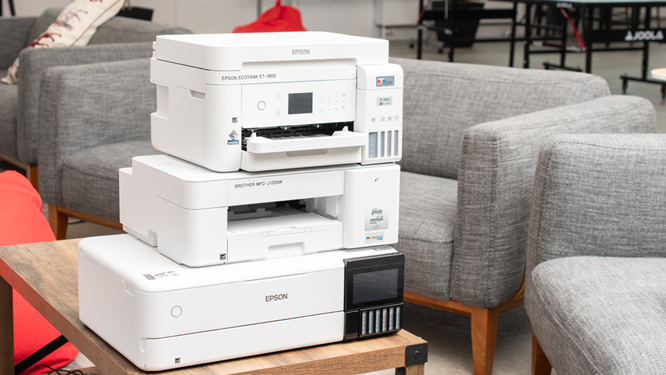
    The 6 Best Home Printers of 2026 

    1. Best Home Printer: Epson EcoTank Photo ET-8500
      • All-in-one inkjet with refillable ink tanks
      • Sharp documents and vibrant photos
      • Prints up to 15 black or 10 color pages per minute
      • Low cost-per-print, easy ink refills
      • Manual flatbed scanner, no automatic feeder
    2. Best Upper Mid-Range Home Printer: Canon Color imageCLASS MF656Cdw/MF654Cdw
      • Color laser all-in-one, excellent for high-volume document printing
      • Sharp print quality, fast at 22 pages per minute
      • Automatic document feeder (ADF) for multi-page scanning
      • Low maintenance cost, no clogging issues
    3. Best Home Printer for Photos: Epson EcoTank ET-3950
      • Inkjet with refillable tanks, great for photos and documents
      • Wide color gamut, detailed photo prints
      • Includes duplex printing and scanning via ADF
      • Slower than some competitors, scanner processes 4 pages/min
    4. Best Mid-Range Home Printer: Brother MFC-J4335DW
      • All-in-one inkjet with good page yield for cartridges
      • Prints 17 black or 15 color pages per minute
      • Decent photo quality, no duplex scanning
      • Optional Ethernet and NFC on upgraded model
    5. Best Budget Home Printer: Brother HL-L2460DW
      • Monochrome laser, fast printing (32-34 ppm)
      • Low maintenance and running cost
      • Print-only device, no scanning or color printing
      • Good for occasional use and label printing
    6. Best Cheap Home Printer: Canon PIXMA MG3620
      • Affordable inkjet, prints sharp documents & photos
      • Slow print speeds, low page yield
      • Supports automatic duplex printing
      • Uses tri-color cartridge, requiring full replacement when one color runs out
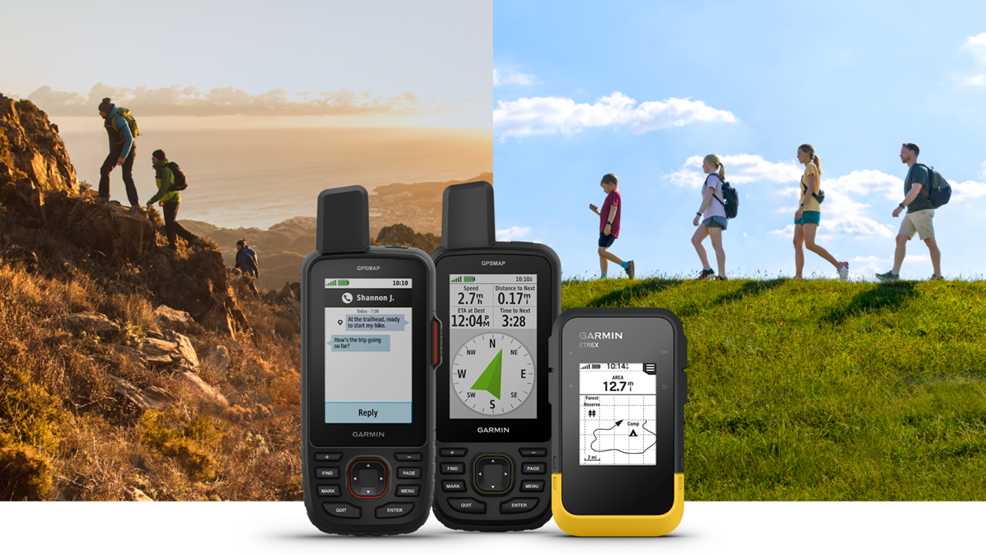
  • Ways to update your Garmin Device

    Ways to update your Garmin Device

    1. Garmin Connect App:

    • The app automatically downloads updates in the background when your device is connected to your phone.
    • No action is needed on your part.
    • Updates usually take up to a week to download before installing or prompting you to install.
    • To get the app, select your mobile platform and download it here: [Download Garmin Connect App For Your Phone].

    2. Garmin Express:

    • This desktop software checks for and downloads updates automatically each time you connect your device to your computer.
    • Follow installation instructions here: [Download Garmin Express For Your Computer].
    • After downloading, safely eject and disconnect your device.
    • When powered on, your device will prompt you to install the update.
    • While installing, avoid pressing buttons or using the device until complete.

    3. Wi-Fi:

    • If your device supports Wi-Fi, it can update via Wi-Fi sync.
    • Check your owner’s manual to confirm if your device supports Wi-Fi updates.

    Keeping your device updated ensures optimal performance and access to the latest features. If you need help with a specific step, just ask!

  • Hello world!

    Welcome to WordPress. This is your first post. Edit or delete it, then start writing!